Jobs
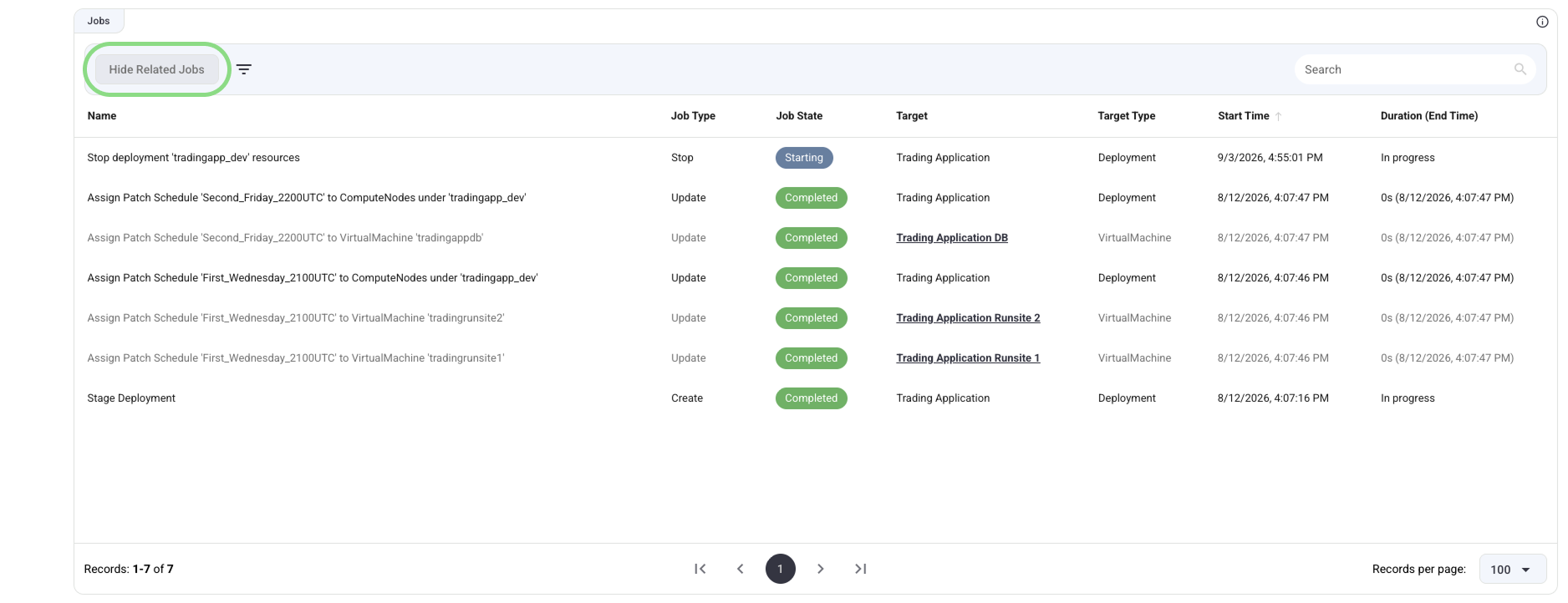
The Jobs widget provides a comprehensive view of all ongoing and historical tasks associated with your infrastructure. Whether an action was triggered manually or via an automated schedule, its execution progress and history are recorded here.
Widget Overview
The Jobs widget uses a table-based layout to list tasks. By default, the table is sorted by the Start Time column, ensuring the most recently initiated jobs appear at the top.
Live Updates
The Jobs widget is driven by Server-Sent Events (SSE). This means the table updates automatically in real-time. New jobs will appear instantly (marked with a "just added" indicator), and the status of ongoing jobs will update without requiring a page refresh.
Table Columns
Based on the interface, the table provides the following columns to help identify and track tasks:
- Name: The descriptive title of the job (e.g.,
Action 'refresh-booking-database' 'Test Action'). - Job Type: The category of the operation being performed (e.g., Action, Start, Stop, Update).
- Job State: The current status of the execution (e.g., Starting, Completed, Failed), color-coded for quick visual scanning.
- Target: The specific item the job is running against.
- Target Type: The object type of the target (e.g., Deployment, VirtualMachine).
- Start Time: The exact date and time the job was initiated (default sort column).
- Duration (End Time): The total time the job took to complete, along with the completion timestamp. Ongoing jobs will display "In progress...".
Searching and Filtering
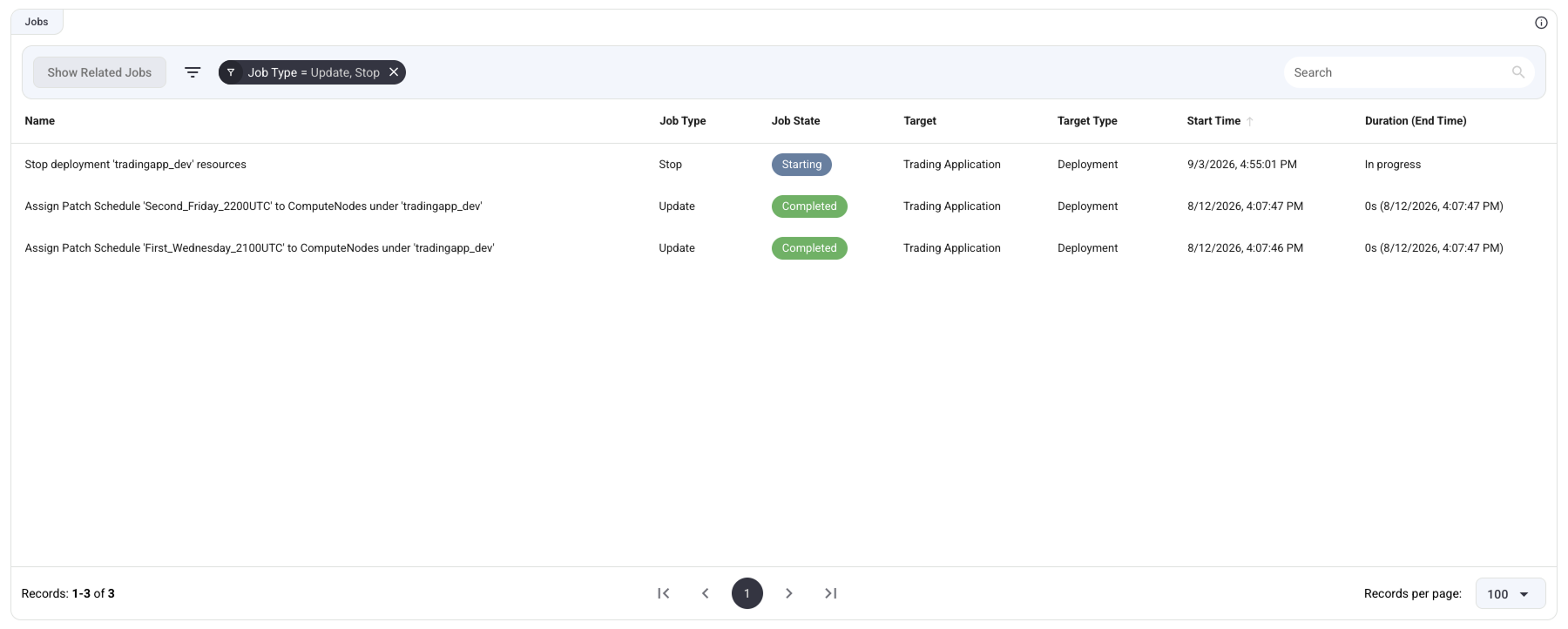
Use the top action bar to refine the list of jobs:
- Search Input: Located on the top right, allowing you to quickly filter rows by text.

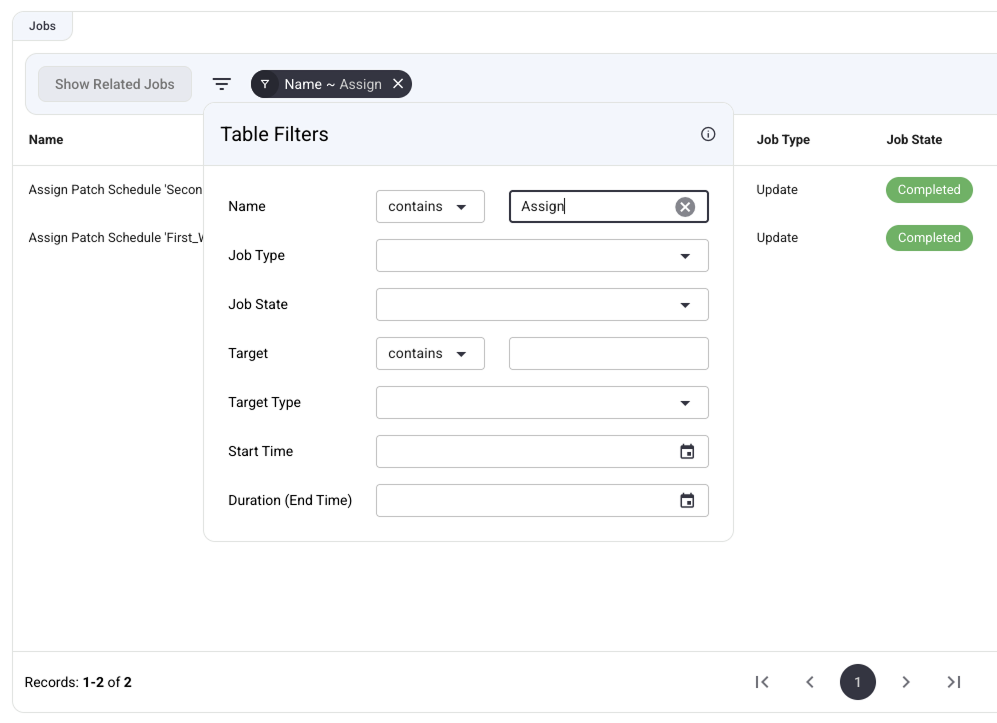
- Advanced Filters: Click the Filter icon to open the detailed filter menu. From here, you can filter the table using specific criteria corresponding to the table columns, including Job Type, Job State, Target, Target Type, Start Time, and Duration.
Viewing Job Details (Splitter Pane)
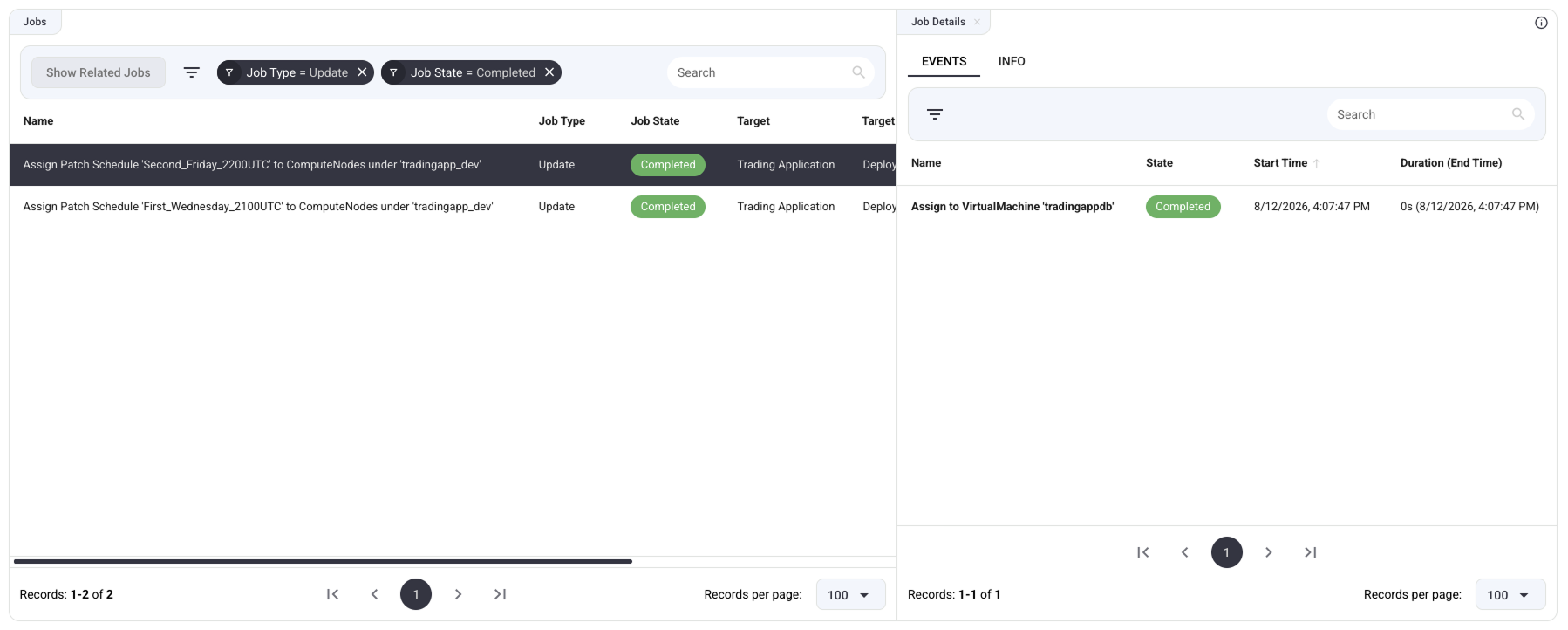
To inspect the execution details of a specific task, click directly on its row in the table. The selected row will be highlighted, and a Job Details splitter pane will open on the right side of the screen.
You can only view the details for one job at a time.
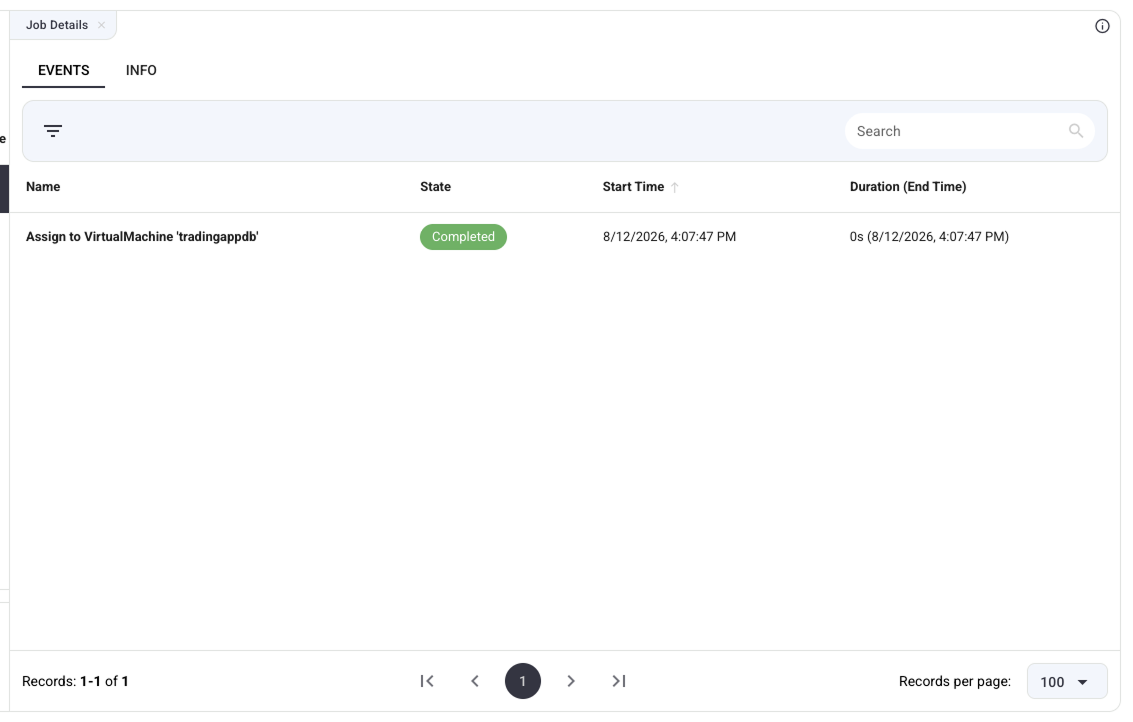
Events Tab
The pane opens to the EVENTS tab by default. This displays a sub-table listing all the individual events and steps that make up the selected job, tracking its step-by-step progress.
- The events list is also sorted by Start Time (newest at the top).
- The events list supports its own internal filtering and searching.
- Live updates apply here as well; if you have the pane open for an ongoing job, new events will populate automatically.
Info Tab
Switch to the INFO tab to view deeper technical and contextual details about the job.
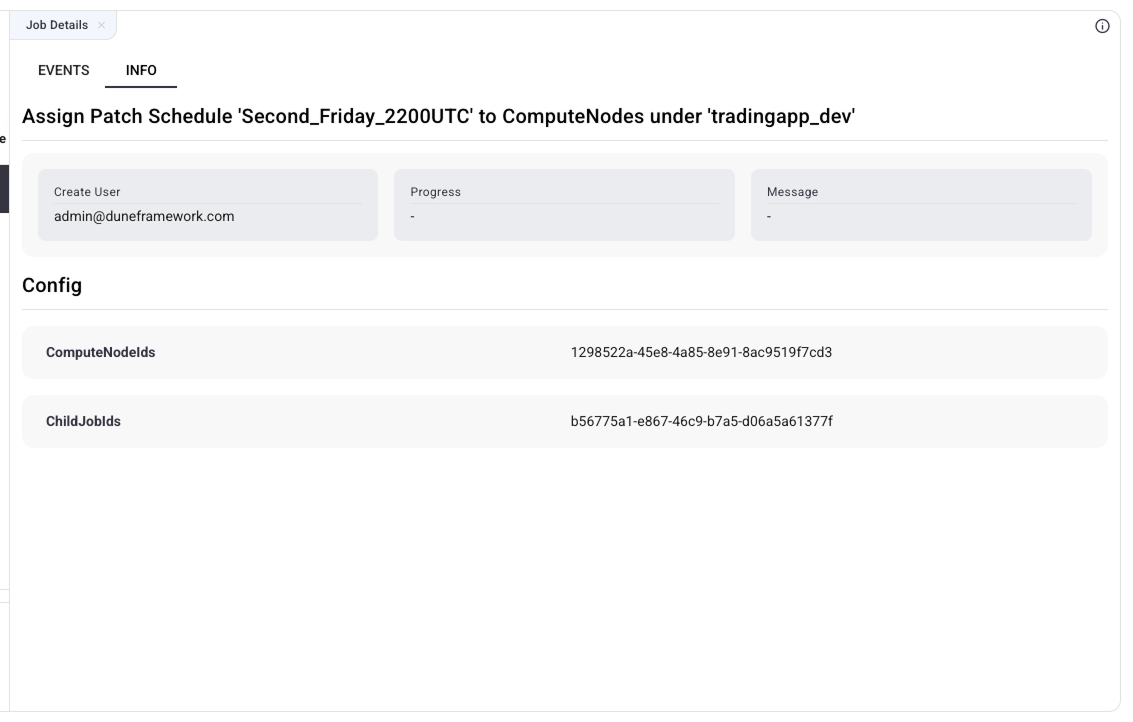
This tab includes:
- Metadata: Information such as the
Create User(who initiated the job), overallProgress, and systemMessages(e.g., "Job ran longer than 23:30:00 hours"). - Config Section: If the job required specific inputs (such as an Action), this section displays the configuration used for the execution. For example, an action job displays
ActionParameters,ActionAssignmentId, andActionAssignmentNamethat were passed to the job when it was triggered.
Closing the Pane: To close the Job Details pane, click the X icon next to the "Job Details" title in the top left of the pane, or drag the splitter width entirely to the right.

Viewing Related Jobs
Like other widgets in Dune, the Jobs widget supports hierarchical viewing. Click the Show Related Jobs button in the top action bar to expand the table to include jobs from all child or parent items related to your current view.
- When active, the text in the Target column becomes a clickable link, allowing you to navigate directly to the target item's page.
- Use the advanced filters to sort by Target or Target Type when viewing related jobs to easily sift through the expanded data set.
- Click the button again (now labeled Hide Related Jobs) to return to the default view.