Patching
This section provides an overview of the patching capabilities in the software. Patching information is available for the following item types: Deployments, Resource Groups, and Virtual Machines. Each item type has a dedicated Patching widget that displays relevant patching details. You can locate these widgets by looking for the "Patching" label or by using the section manager to navigate directly to them.
Patching Widgets
Deployment and Resource Group Patching Widgets
Because patch schedules are attached directly to individual resources (compute nodes), the Patching widgets for Deployments and Resource Groups share the same structure.
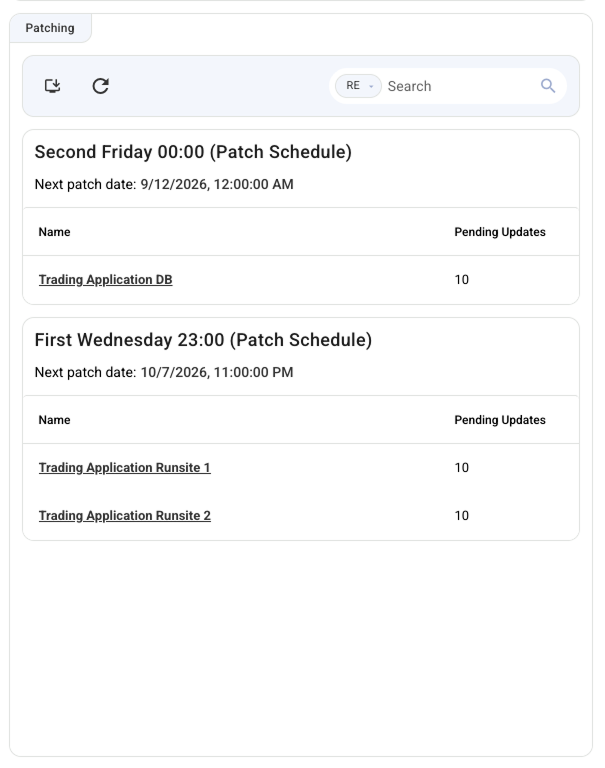
The widget displays a card for each active patch schedule assigned to resources within that deployment or resource group.
- Card Header: Displays the name of the patch window.
- Card Subtitle: Displays the next scheduled patch date.
-
Resource Table: Inside each card is a table listing the specific compute nodes assigned to that schedule.
- Name: The name of the resource. This is a clickable link that navigates directly to that compute node and scrolls down to its specific Patching widget.
- Pending Updates: Displays either the count of pending updates or an "up to date" chip. Clicking the number of pending updates opens a scrollable menu listing the specific names of all pending updates.
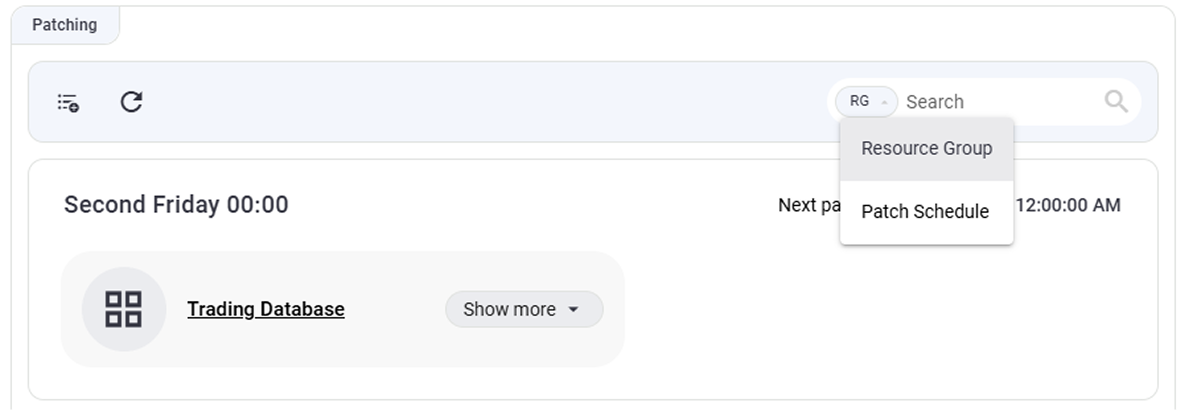
The top action bar of the widget includes:
- A button to open the Manage Patch Schedule dialog.
- A refresh button.
- A search input with a dropdown filter allowing to search by either Resource or Patch Schedule.
Virtual Machine Patching Widget
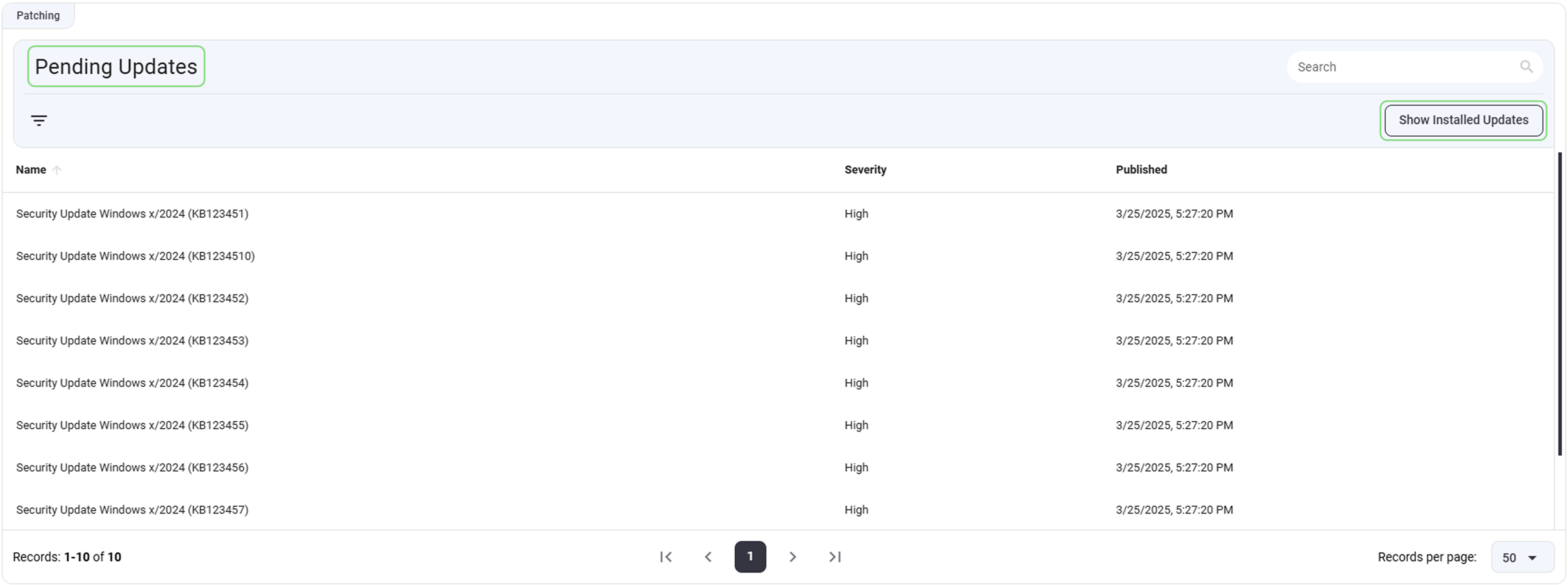
The Virtual Machine Patching Widget differs in structure. It presents a table of updates for the currently selected resource, with two modes:
- Pending Updates: Displays updates scheduled for the next patch cycle, as determined by the patch schedule.
- Installed Updates: Shows updates installed during the previous patch cycles.
You can toggle between these modes using the button below the search input. The widget title indicates the current mode.
Patch Schedules
Patch schedules control when and how patching occurs. With the Dune, you can create customized schedules specifying the week, day, and time for patching your resources.
Azure Specific
A patch schedule represents a maintenance config in Azure. Dune coordinates the assignments of resources to maintenance configurations. The patching is then executed by Azure.
Creating Patch Schedules
Required Permission
You must have the TenantAdmin role to perform this action.
To create or manage patch schedules:
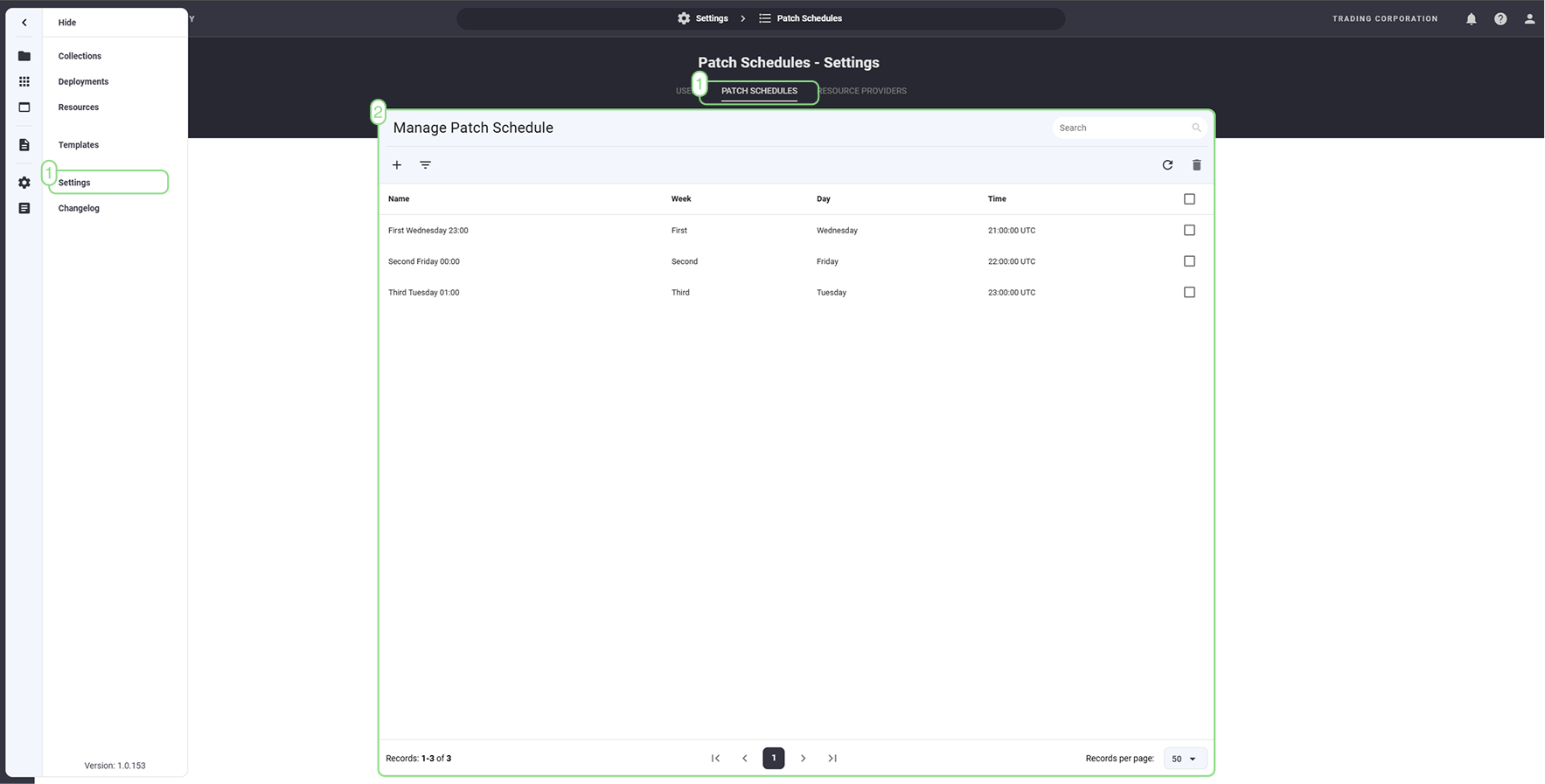
- Navigate to Settings > Patch Schedules.
- A table displays all existing patch schedules.
Deleting Patch Schedules
- Select one or more patch schedules by clicking their rows.
- Click the Bin icon to delete them.
- Confirm the deletion in the prompted dialog.
Note
You can only delete schedules not currently in use.

Adding Patch Schedules
- Click the + button to open the creation dialog.
- Make the following selections:
- Week of the Month: Choose which week the patching should occur.
- Day: Select the day of the week.
- Time: Specify the exact time for updates.
- The dialog header displays the generated patch schedule name based on your selections.
- Click Add to create the schedule. It will appear in the Manage Patch Schedules table and become available for assignment.

Assigning Patch Schedules
Required Permission
To assign a patch schedule you'll need at least Owner role on deployment or resource group level.
Patch schedules are assigned directly at resource (compute node) level.
Azure Specific
After successfully assigning a patch schedule, it will start a workflow in the background that sets everthing up. This will create or upate an azure maintenance configuration for the affected resource. To track this process you can check the corresponding jobs inside the job widget of the resource group.
Assigning via Deployment or Resource Group
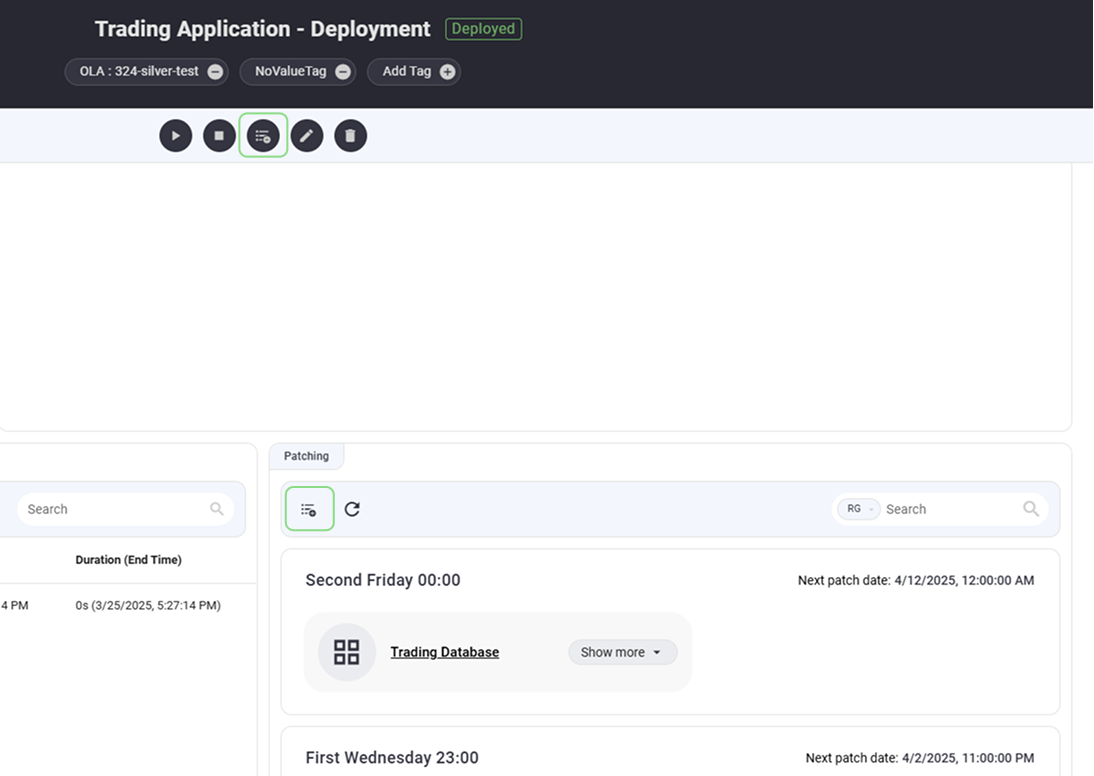
Click the Manage Patch Schedule button in the Patching widget or inside the operations bar to open the assignment dialog. This dialog allows you to manage schedules for all underlying resources at once.
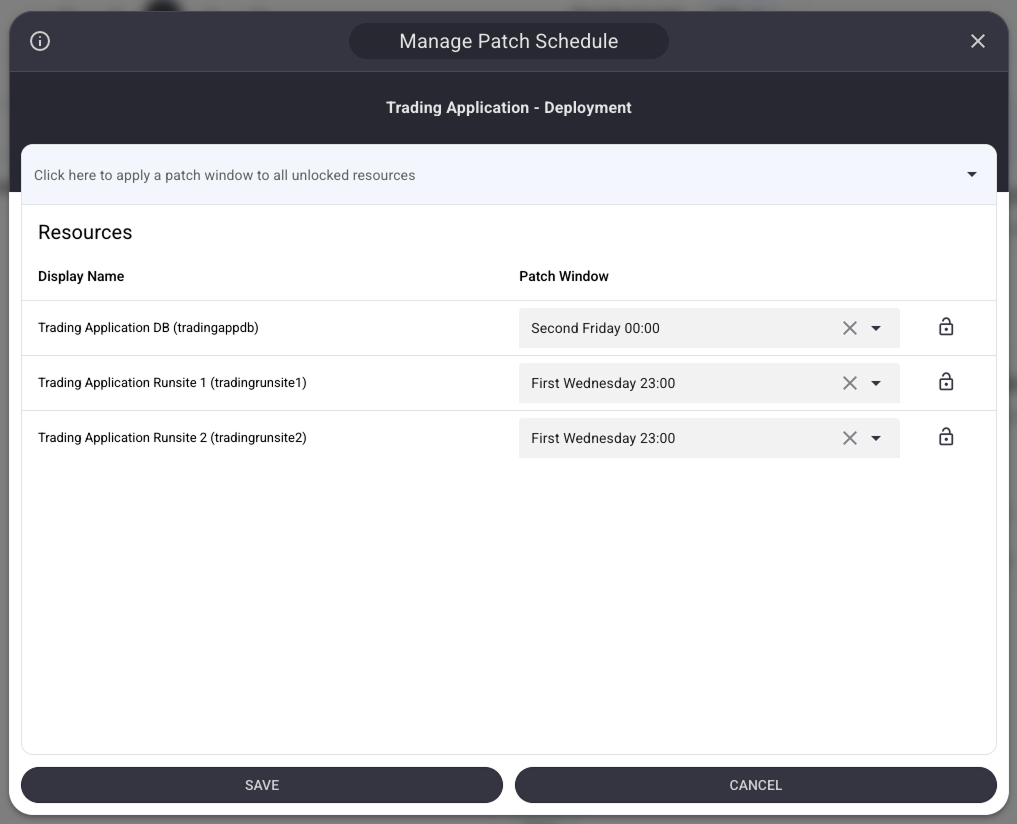
- Global Assignment: At the top of the dialog, a select dropdown allows you to choose a patch window. Selecting a window here applies it to all unlocked resources in the list below.
-
Resource List: Below the global selection is a table of all compute nodes belonging to the item.
- Display Name: Shows the resource's display name and technical name. If you change a resource's schedule, this text will be highlighted in a different color to indicate a pending change.
- Patch Window: A dropdown to individually assign or unassign (using the X icon) a patch schedule for that specific resource.
- Lock Icon: The far-right column contains a lock toggle. Locking a row prevents it from being affected by the global assignment dropdown at the top, allowing for fine-tuned multi-assignments.
Changes are only applied after clicking Save. Upon saving, the dialog closes and the view scrolls down to the Jobs widget. New jobs (e.g., assign/unassign patch window) will appear. Click into these jobs and view the config in the INFO tab to see the specific resource IDs affected by the change. The patching widget will update once the job has finished.
Assigning via Virtual Machine
It is also possible to assign a patch schedule directly from a Virtual Machine (Compute Node):
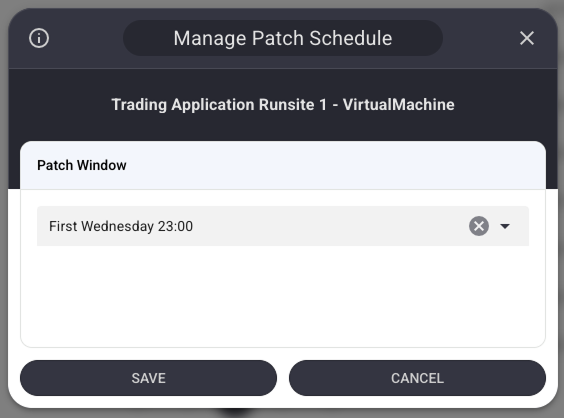
- Click the Manage Patch Schedule button in the Virtual Machine's operations bar.
- A simple dialog opens with a single Patch Window dropdown.
- Select a new schedule or use the X icon to unassign the current one, then click Save.
When are my resources getting patched?
The next patch date is visible in the deployments and resource groups patching widget. In the 'Virtual Machine Info' widget of the resources the last and next patchdate is visible as well.